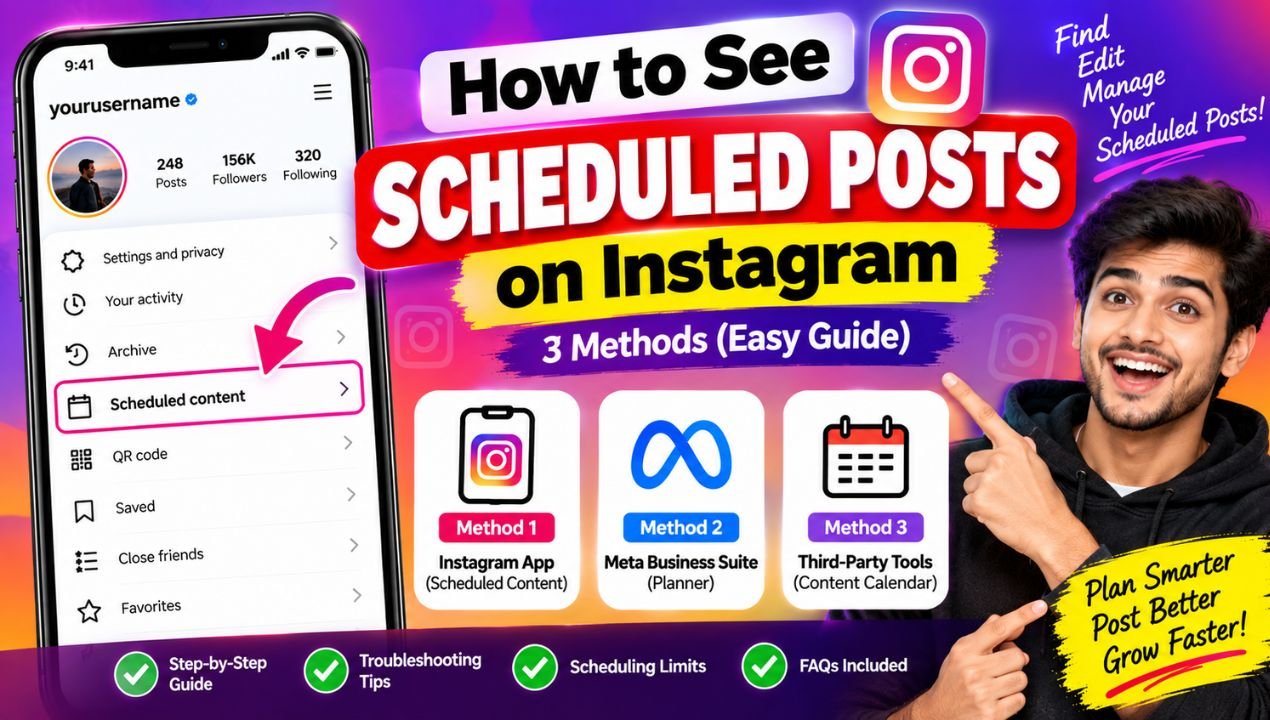
Have you scheduled Instagram posts in advance but now cannot find them? You are not alone. Many Instagram users schedule content and later wonder whether the post was actually scheduled, saved as a draft, or placed somewhere else.
The most important thing to understand is that scheduled Instagram content is generally visible in the same tool where it was created. A post scheduled directly through Instagram may not appear in Meta Business Suite, and content scheduled through a third-party platform may not appear inside Instagram’s own scheduling section.
In this guide, we’ll explain where to find scheduled Instagram posts using the Instagram app, Meta Business Suite, and third-party scheduling platforms.
Quick Answer: Where Can You Find Scheduled Instagram Posts?
The location of your scheduled content depends on the method you originally used.
| Scheduling Method | Where to Check | Main Requirement |
|---|---|---|
| Instagram App | Profile → Menu → Scheduled Content | Public Instagram account |
| Meta Business Suite | Planner or Content section | Professional account + linked Facebook Page |
| Third-Party Scheduler | Content calendar/dashboard | Usually a Professional account |
| Drafts | Instagram’s Drafts section | Post was not fully scheduled |
The key point is simple: check the platform where you originally selected the Schedule option. Scheduled content does not automatically appear in every connected scheduling tool.
Method 1: Find Scheduled Posts in the Instagram App
If you scheduled your content directly from Instagram, you can normally find it inside the app’s Scheduled Content section.
Instagram’s scheduling options have also changed over time. According to the uploaded guide, from March 1, 2026, Instagram expanded in-app scheduling to public Personal, Creator, and Business accounts. Private accounts remain excluded from this scheduling feature.
Step-by-Step Instructions
- Open the Instagram app.
- Go to your Profile.
- Tap the three-line Menu icon in the top-right corner.
- Look for Scheduled Content.
- Tap it to view your scheduled posts, Reels, and carousels.
- Select a post if you want to make changes.
From this section, you may be able to change the scheduled time, edit the caption, update tags or location, or remove the scheduled post.
read also: फोल्डेबल iPhone Ultra की कीमत $2,550 होने का अनुमान, जानें पूरी जानकारी
What If You Cannot See “Scheduled Content”?
One possible reason is that your account is private. The uploaded guide states that the in-app scheduling feature requires a public account under the 2026 expansion.
To check your privacy setting:
- Open your Instagram profile.
- Go to Settings and privacy.
- Select Account privacy.
- Check whether your account is set to private.
- If appropriate, switch it to public.
Professional accounts can still be useful if you need additional creator or business features such as more detailed insights and access to certain professional tools.
Method 2: Find Scheduled Posts in Meta Business Suite
If you manage Instagram together with a Facebook Page, Meta Business Suite can be a convenient option for planning and managing your content.
The biggest advantage is that it provides a calendar-style view, making it easier to see upcoming content.
How to Check Scheduled Instagram Posts
- Open Meta Business Suite on your desktop.
- Log in to your Meta account.
- Open the Planner section.
- If necessary, open the Content section to find Planner.
- Use the available filters.
- Select Instagram and remove Facebook from the view if you only want to see Instagram content.
- Review the scheduled posts in the calendar.
The uploaded article notes that Instagram and Facebook content can appear together in Business Suite, so filtering the calendar can make Instagram posts easier to locate.
Common Meta Business Suite Problems
Sometimes a scheduled post may not immediately appear in the Planner. This can happen because of a temporary synchronization delay.
Try refreshing the page after waiting briefly.
Another possible problem is account permissions. If you work with a team and another person created the scheduled post, you may not have sufficient access to view or manage it. In that situation, an administrator may need to update your permissions.
Method 3: Use a Third-Party Instagram Scheduler
Many creators, businesses, agencies, and social media teams use third-party scheduling platforms to manage content.
These tools can be especially useful if you handle multiple social networks and want everything organized in one place.
For example, a third-party scheduler can provide a central content calendar where you can plan Instagram alongside platforms such as TikTok, Facebook, X, LinkedIn, or YouTube.
How to Find Your Scheduled Content
- Log in to the scheduling platform you used.
- Open its Content Calendar, Planner, or similar section.
- Select Instagram if multiple social accounts are connected.
- Look for the scheduled date.
- Open the post to view or edit it.
Remember that a post scheduled through a third-party service will generally be managed from that service rather than the Instagram app’s Scheduled Content section.
Instagram App vs Meta Business Suite vs Third-Party Tools
Each scheduling method has different advantages.
| Feature | Instagram App | Meta Business Suite | Third-Party Scheduler |
|---|---|---|---|
| Cost | Free | Free | Depends on platform |
| Instagram scheduling | Yes | Yes | Yes |
| Calendar view | Limited | Yes | Usually yes |
| Multi-platform scheduling | No | Limited to Meta platforms | Usually yes |
| Feed posts | Yes | Yes | Yes |
| Reels | Yes | Yes | Yes |
| Stories | Limited/not native | Yes, with limitations | Depends on tool |
| Bulk scheduling | Limited | Limited | Often available |
| Team collaboration | Limited | Available | Often advanced |
| Best for | Individual creators | Meta-focused businesses | Agencies and multi-platform teams |
The right option depends on how much content you publish and whether you manage one social network or several.
How Far in Advance Can You Schedule Instagram Posts?
According to the uploaded guide, Instagram’s native scheduler and Meta Business Suite allow scheduling up to 75 days ahead, with a stated limit of 25 posts or Reels per day.
Third-party platforms may offer longer planning windows, although they remain subject to Meta’s API publishing limits.
| Platform | Scheduling Window | Daily Limit Mentioned |
|---|---|---|
| Instagram App | Up to 75 days | 25 posts/Reels |
| Meta Business Suite | Up to 75 days | 25 posts/Reels |
| Third-Party Tools | Often longer/unlimited | Subject to API limits |
If you manage a large number of accounts, check the specific scheduler’s current limits before planning a high-volume publishing schedule.
Why Can’t I Find My Scheduled Instagram Post?
If a scheduled post has disappeared, don’t immediately assume that Instagram deleted it.

There are several possible explanations.
1. You Are Checking the Wrong Platform
This is one of the most common reasons.
If you scheduled the post through Meta Business Suite, it may not appear under Instagram’s Scheduled Content section. Likewise, content created in a third-party scheduler may only be visible there.
2. Your Account Is Private
If the scheduling option is missing from Instagram, check your account privacy settings. The 2026 expansion described in the source applies to public accounts, while private accounts remain restricted from the native scheduling feature.
3. You Saved a Draft Instead
A draft and a scheduled post are not the same thing.
A draft is unfinished content saved for later, while a scheduled post has a specific publishing date and time.
If you created the post but never completed the final scheduling step, it may still be sitting in your drafts.
4. Your Third-Party Connection Has Expired
If you use an external scheduling platform, its connection with Instagram may need to be reauthorized.
In such cases, reconnecting your Instagram account inside the scheduling tool can refresh the connection and resolve the issue.
5. You Don’t Have the Correct Permissions
Team accounts can also create confusion. Someone else may have scheduled the content while your account does not have sufficient permissions to view or edit it.
Ask the account administrator to check your access level.
Can You Edit a Scheduled Instagram Post?
Yes. Scheduled content can generally be edited before it goes live.
Depending on the scheduling method, you may be able to change:
- Caption
- Hashtags
- Location
- Publishing date
- Publishing time
- Media
- Other post details
The exact editing options depend on the platform you used to schedule the content.

Can Scheduled Posts Get Less Reach?
Scheduling a post does not automatically mean that Instagram will reduce its reach.
The uploaded guide states that Instagram treats scheduled content similarly to manually published content. Factors such as content quality, timing, and audience engagement remain important.
In fact, scheduling can make it easier to maintain a consistent posting routine and publish when your audience is most active.
Check Out
Instagram Scheduling FAQ
Can I schedule posts from a Personal Instagram account?
According to the source, yes. As of March 1, 2026, Instagram expanded native scheduling to public Personal, Creator, and Business accounts. Private accounts remain excluded.
Can I schedule Instagram Stories from the app?
The uploaded guide states that native Story scheduling was not yet available inside the Instagram app as of its March 2026 information. Meta Business Suite and third-party scheduling tools may provide Story scheduling with different limitations.
Can I schedule carousel posts?
Yes. The source states that Instagram, Meta Business Suite, and many third-party tools support carousel scheduling.
Can I schedule multiple posts at once?
Native Instagram scheduling has more limited bulk-management capabilities. Third-party scheduling platforms generally offer stronger bulk scheduling features, which can be useful for creators and agencies managing large content calendars.
Final Words
Finding a scheduled Instagram post is usually easier once you remember where you originally scheduled it.
If you used Instagram, check Profile → Menu → Scheduled Content. If you used Meta Business Suite, open Planner and filter for Instagram. If you used a third-party scheduler, open its content calendar.
If the post is still missing, check whether it was saved as a draft, whether your account is private, whether your third-party connection needs to be refreshed, or whether you have the correct permissions.
The biggest takeaway is simple: Instagram, Meta Business Suite, and third-party scheduling tools do not function as one universal scheduling calendar. Start by checking the exact platform where the post was created, and you’ll usually find your scheduled content much faster.