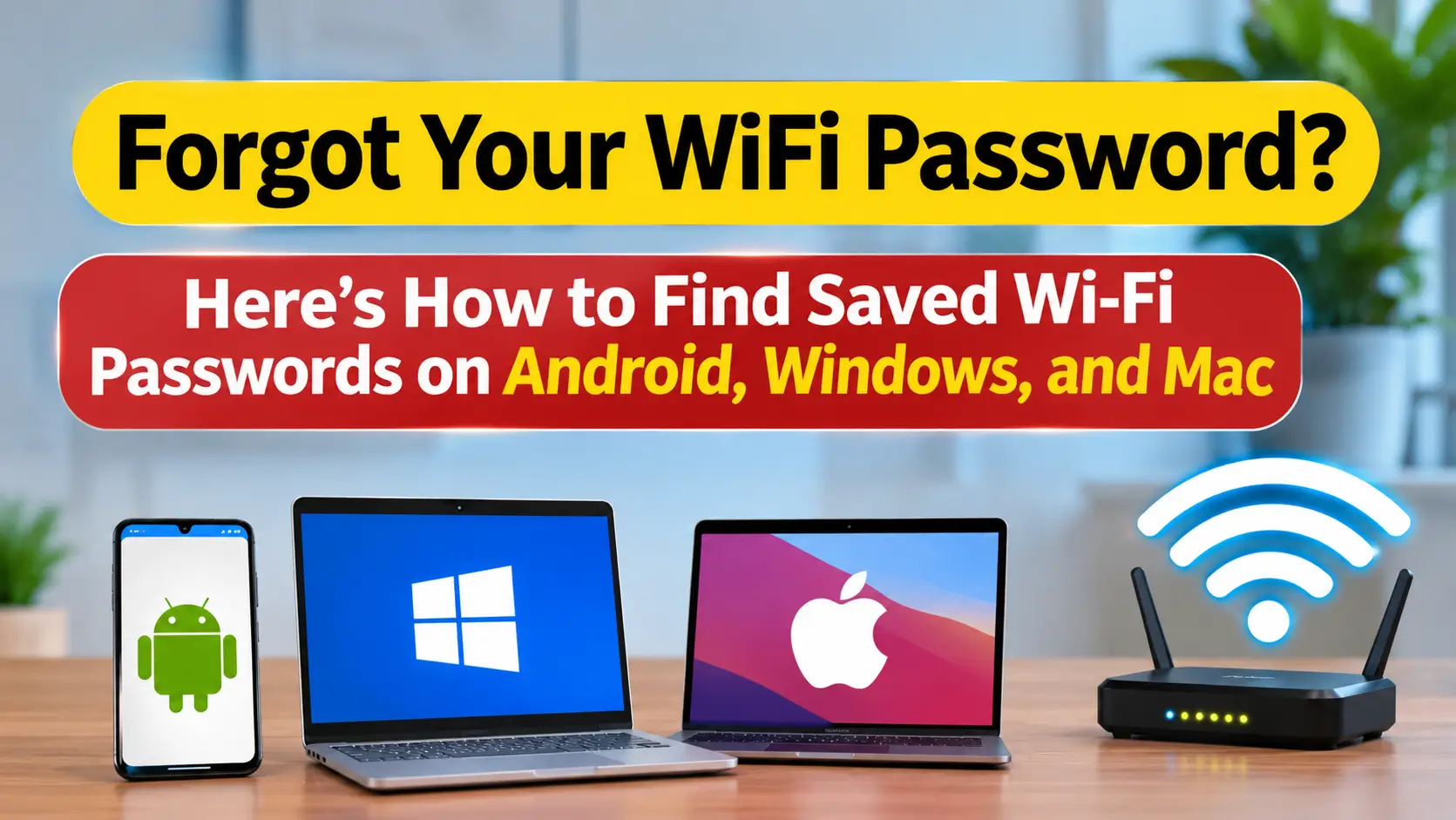
Have you ever connected your phone or laptop to a Wi-Fi network but later forgotten its password? This can become a problem when you want to connect another device, share the network with a friend, or reconnect an old device. Fortunately, you may not need to reset your router or ask someone for the password again. Your device can save details of previously connected Wi-Fi networks. By following a few simple steps, you can find the saved password on Android, Windows, or Mac. Here’s how to do it safely and easily.
Where Are WiFi Passwords Saved?
When your smartphone or computer connects to a Wi-Fi network, it can save the network details, including its name and password. However, the saved password is not always visible directly.
You may need to open your device’s Wi-Fi settings or password management tools to access it. The exact process depends on your device model and operating system.
For example, Samsung Galaxy and Google Pixel phones may have slightly different settings menus. Similarly, Windows and macOS provide their own options for viewing saved Wi-Fi passwords.
How to Find a WiFi Password on Windows 11 and Windows 10
If your computer runs Windows 10 or Windows 11, you can use the Control Panel and Network and Sharing Center to view the password of a connected Wi-Fi network.
On Windows 11, click the Start button and open Control Panel. Select Network and Internet, then open Network and Sharing Center.
On Windows 10, open Settings and select Network & Internet. Go to the Status section and click Network and Sharing Center.

The remaining steps are the same for both Windows versions.
In Network and Sharing Center, click your Wi-Fi network name next to Connections. A Wi-Fi Status window will appear. Select Wireless Properties and open the Security tab.
Now, check the box next to Show characters. Your Wi-Fi password will appear in the Network security key field.
How to Find a WiFi Password on MacBook and macOS
Mac users can use the Keychain Access application to find previously saved Wi-Fi passwords. This tool manages password information stored on the Mac.
First, search for and open Keychain Access on your Mac. In the sidebar, select System under System Keychains. Next, open the Passwords section at the top.
Find the Wi-Fi network whose password you want to view. Double-click its name to open the details window.
Select the Show password option. Your Mac may ask you to enter your system password for verification. Once you complete authentication, the saved Wi-Fi password will become visible.

How to Find an Old WiFi Password on Android
Android phones also provide options for accessing saved Wi-Fi network details. However, the exact steps may vary depending on the smartphone brand and Android version.
Generally, open Settings and go to Wi-Fi or Network & Internet. Look for Saved Networks or select a previously connected network.
Choose the Wi-Fi network whose password you need. Some Android phones provide a Share or QR Code option. After confirming your identity with your screen lock or fingerprint, a QR code may appear.
On supported devices, the password may also be displayed directly. If only a QR code appears, another device can scan it to connect to the same Wi-Fi network.
Samsung Galaxy, Google Pixel, and other Android smartphones may use different menu names. Therefore, check the settings available on your specific phone.
Important Safety Tips When Viewing WiFi Passwords
Only access and share passwords for networks you own or have permission to use. Never try to obtain someone else’s Wi-Fi password without their consent.
Avoid sharing saved passwords with unknown people. If you use a QR code to share your Wi-Fi connection, make sure it is visible only to someone you trust.
WiFi Password
Enter your WiFi network name
Final Words
Forgetting a Wi-Fi password does not always mean you need to reset your router or create a new one. Android, Windows, and Mac devices offer ways to access previously saved network details.
By following the steps above, you can view a saved password or use a QR code to connect another device. Always keep your network details private and share them only with trusted people.